
P-Video 2 makes AI video controls feel less like a single prompt box and more like a compact shot-planning system. The model can generate from text, animate a start image, condition motion on audio, accept an optional last-frame reference, and export at 720p or 1080p with 24 or 48 frames per second. Those are not cosmetic switches. For developers and infrastructure teams, each one changes the number of frames, pixels, inputs, or retries that a workflow must handle.
P-Video 2 turns a prompt into a shot brief
A plain text-to-video request leaves composition, motion, and the final beat to the model. P-Video 2 gives a team more handles. A start image fixes the opening composition. A last-frame image gives the shot an intended destination. Audio can drive a music-led clip or a talking-head experiment. Aspect ratio moves between 16:9 and 9:16 without rebuilding the creative brief from scratch.
The useful mental model is a short, single-action shot. Ask for one object to rotate, one person to turn, or one camera move. The official model documentation lists text, image, and audio-conditioned generation; it also documents durations up to 20 seconds, two output resolutions, and 24 or 48 fps options. Cloudflare’s P-Video documentation confirms the input modes and parameter set.
That structure matters in a production pipeline. A creative system can store the prompt, seed, duration, ratio, fps, draft flag, and image references as a job record. A reviewer can then reproduce a promising take instead of trying to reconstruct a prompt from chat history. P-Video 2 exposes a seed specifically for that purpose. Reproducibility will not make every result identical across a changing service, but it gives an engineering team a stable starting point for comparison.
AI video controls change the work per shot
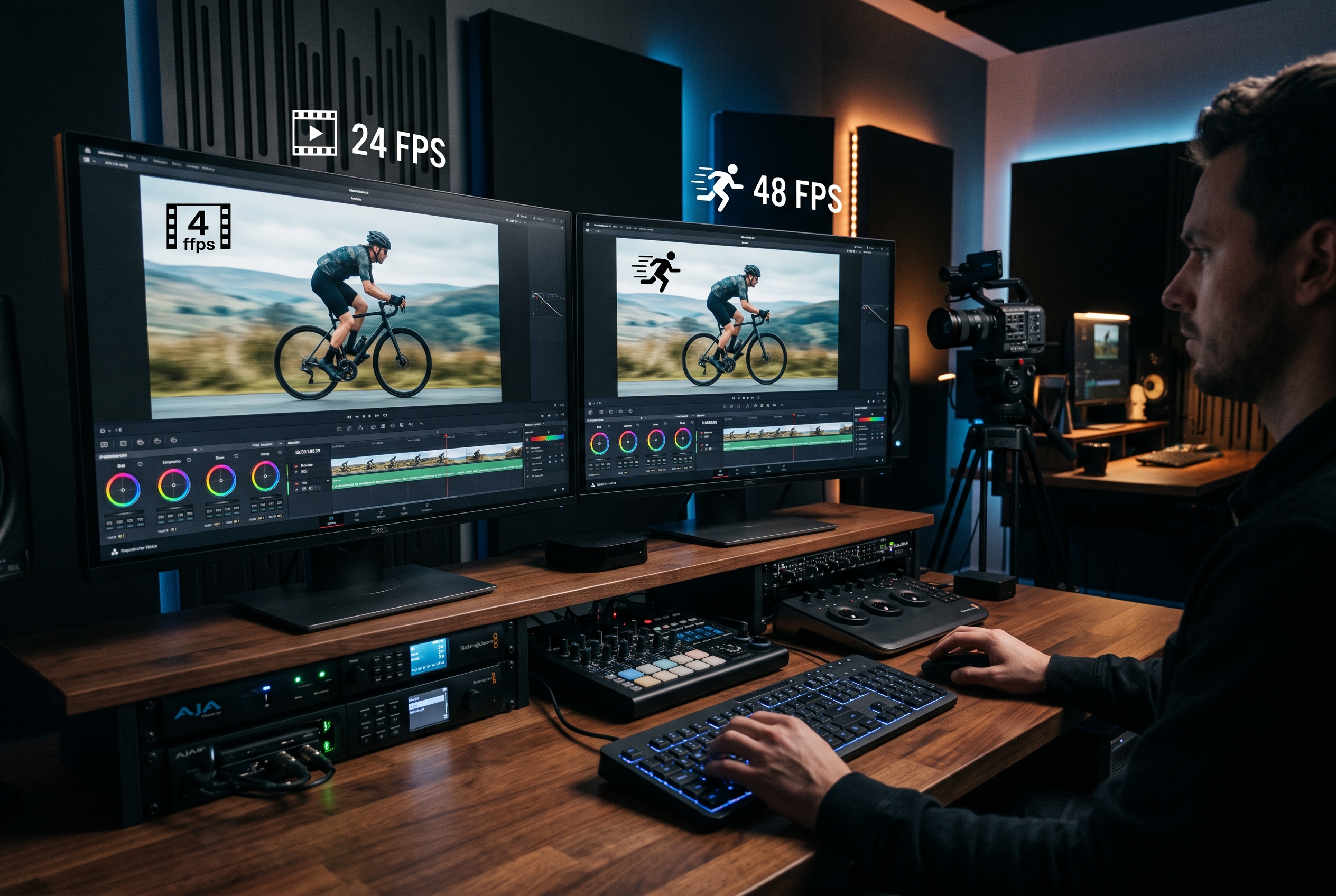
Resolution and frame rate compound quickly. A five-second clip at 24 fps contains 120 frames. At 48 fps, it contains 240 frames. Holding duration steady, that doubles the temporal output. Moving from 1280 by 720 to 1920 by 1080 raises pixel count from 921,600 to 2,073,600 per frame, about 2.25 times as many pixels. A 1080p, 48 fps, five-second output therefore asks a system to deliver roughly 4.5 times the raw frame-pixel volume of a 720p, 24 fps, five-second output before counting model-specific optimizations.
That calculation is not a prediction of latency or cost. Video generators do not process every pixel with a simple linear formula, and providers use different sampling and compression paths. It is still a good capacity-planning signal. Longer duration, higher resolution, and higher fps should be treated as separate quality budgets. P-Video 2 supports 5, 10, 15, and 20-second requests, so duration can multiply the workload again.
| Setting | Five-second output | Why it matters |
|---|---|---|
| 24 fps | 120 frames | A sensible baseline for dialogue and measured movement. |
| 48 fps | 240 frames | More temporal samples for fast motion, plus a larger render and review payload. |
| 720p | 921,600 pixels per frame | Useful for early composition checks and smaller delivery targets. |
| 1080p | 2,073,600 pixels per frame | Better suited to a selected final shot or a larger display. |
Draft mode deserves the same attention. It is not merely a lower-quality checkbox. It changes how a queue behaves. Use draft output to reject weak framing, bad motion verbs, and awkward camera moves before a final render enters a shared worker pool. The P-Video model notes describe draft previews as four times faster for quick iteration. Treat that published figure as provider guidance, then measure it against the actual queue, region, and input mix in use.
Two P-Video 2 control tests
Two fresh P-Video 2 outputs make the difference concrete. The first is a five-second 720p, 24 fps draft. Its brief asks for one calibration arm to rotate and one short camera push. That is the right level of complexity for an early motion check: the team can inspect whether the object holds its shape, whether the light pulse lands on time, and whether the camera move distracts from the action.
The second run keeps the five-second duration and a single clear action, then moves to 1080p with draft disabled. It uses an edge-server rack because fine lines, blinking indicators, cables, and fan motion reveal whether a model can keep small technical details stable. It is not a benchmark. It is a targeted acceptance test for a common infrastructure visual.
Keep the two existing image examples in this post as useful still references, but use the new clips to judge temporal behavior. A compelling first frame can hide flicker, object drift, or a camera move that stops making physical sense after second three. For a release workflow, save the selected output, the input assets, and the parameter record together.

A practical P-Video 2 workflow for teams
Start by writing the shot in four fields: subject, action, camera, and constraints. For example: edge server rack; fans turn slowly and three indicators blink in sequence; camera tracks left; no cuts or morphing. This gives P-Video 2 less room to invent a second scene. It also makes it easier to isolate a failure. If the camera drifts, change the camera field. If the object changes shape, simplify the action.
Next, render a five-second draft at 720p and 24 fps. Review it at normal speed and frame by frame. Check subject identity, contact points, text-like details, and the start and end of the motion. Do not turn on every quality setting to rescue a weak composition. Change one variable, retain the seed when comparison matters, and submit another draft.
Once the motion survives review, choose the final delivery settings. Use 1080p for a chosen marketing shot or a larger embedded player. Use 48 fps only when the subject has fast movement that benefits from it. For social output, use the 9:16 ratio at planning time rather than cropping a wide shot after generation. If a precise opening or ending matters, hand P-Video 2 a reference image rather than relying on prompt wording alone.
Infrastructure teams should put guardrails around that loop. Set a maximum duration by job class. Separate preview and final queues. Log every parameter and source asset. Track completion time, output size, retry rate, and reviewer acceptance rate by setting combination. Those metrics show whether a 48 fps final actually improves approval rates or only increases processing load.
Where P-Video 2 needs an editor
P-Video 2 works best when a short clip has one visual job. The published model notes call out close-up subjects, product animation, short-form content, and music-driven work. They also warn against extreme camera moves and complex multi-scene stories. That is a useful boundary, not a flaw to argue with. Generate shots, then cut them together in an editor.
Audio conditioning also needs a review pass. Audio longer than the selected duration is trimmed, while shorter audio can shorten the video. Multi-speaker scenes can create attribution drift, so use a dedicated audio pipeline when speaker identity is the main requirement. For product or hardware footage, test any labels and small UI details before approving an output. Video models often make plausible-looking text rather than accurate text.
The bigger point is simple. P-Video 2 gives a team levers that map to real production decisions: composition, ending state, duration, resolution, cadence, and preview quality. Use those levers to make fewer, better final renders. Run P-Video 2 on Wiro with one controlled shot brief, compare a draft against a final, and keep the settings that earn their compute budget.